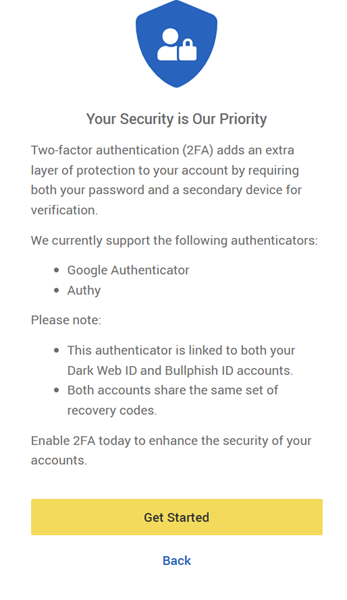
Resetting another user's 2FA settings
There may be situations where a Bullphish ID Partner Administrator needs to reset a user’s two-factor authentication (2FA). Common scenarios include:
-
A user loses their phone.
-
A user changes their authenticator app.
IMPORTANT The information in this document applies only to customers who have both a DarkWeb ID subscription and a BullPhish ID subscription. If the scenarios described above occur for customers with only a BullPhish ID subscription, a support ticket must be submitted as 2FA settings cannot be reset for another user within BullPhish ID.
IMPORTANT BullPhish ID and DarkWeb ID share the same user login credentials. Therefore, resetting a user’s 2FA settings will apply to both platforms.
To reset 2FA for another user:
1. Log into https://secure.darkwebid.com/.
2. In the left navigation pane, click Users.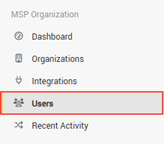
3. For the applicable user, click the More menu (three dots) at the end of the user’s row and select Edit.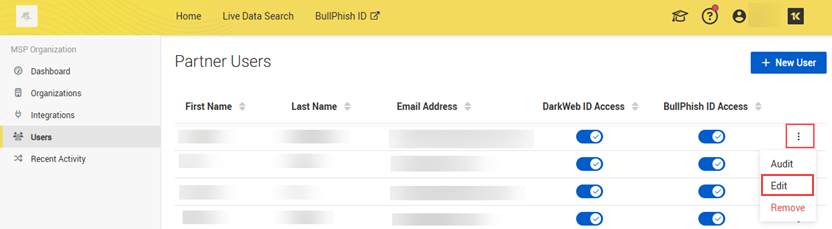
4. In the Your Security is Our Priority section, click Disable 2FA until the next Login.
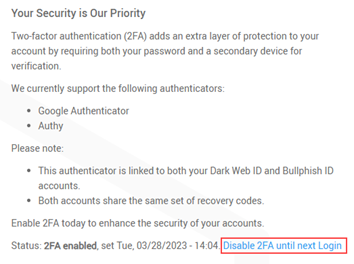
5. Click Disable to confirm the deactivation of 2FA for the specified user.
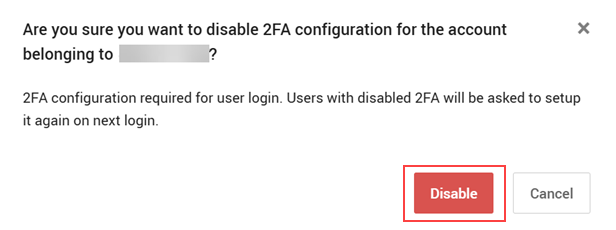
The next time the user logs into https://secure.darkwebid.com/, they will be prompted to enable 2FA.