Why does text appear as xxxx in training content?
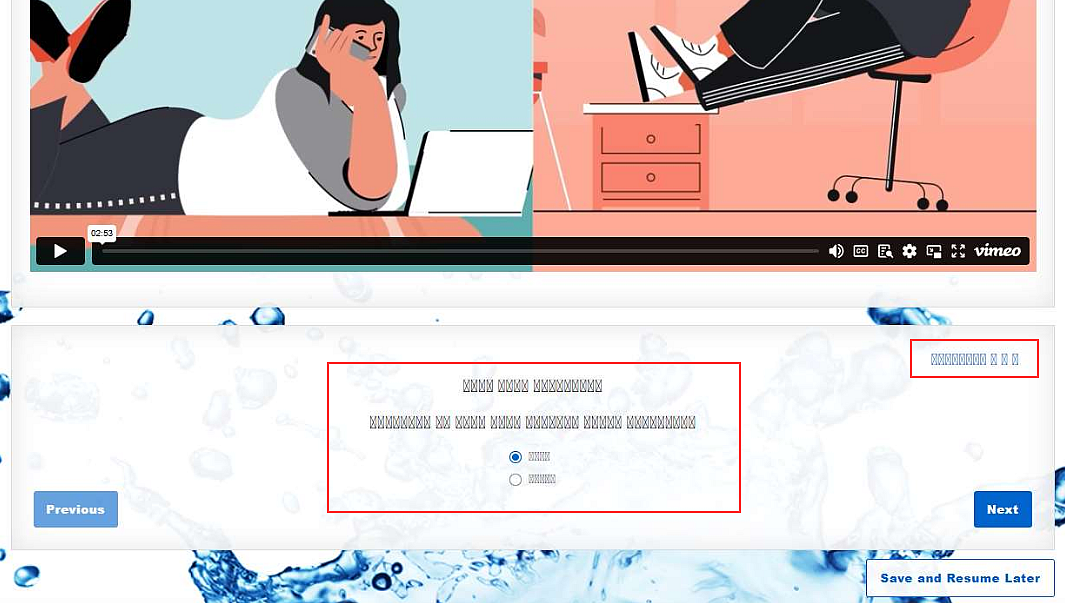
If the text on the training portal home page or in a training course appears as numerous X's, there are steps you can take to collect information that will be help the support team resolve your issue.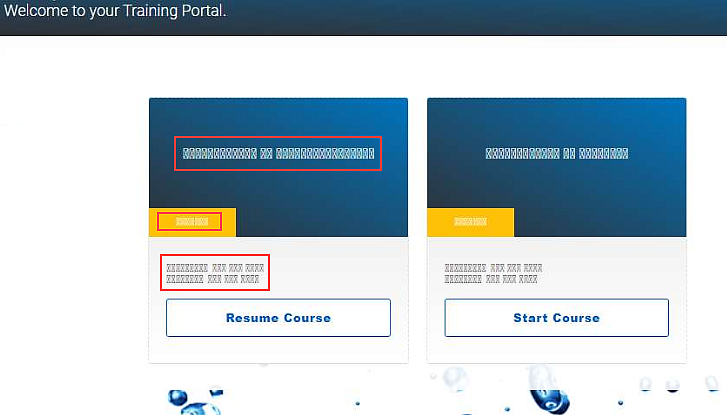
Verify fonts are loaded correctly
- Go to the page where the font issue occurs.
- Press F12 to open Developer Tools.
- Click the Network tab.
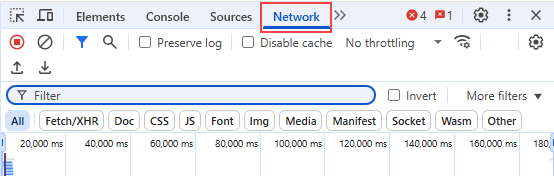
- Press F5 to refresh the page (forces full reload).
- In the Network filter bar, type: woff, woff2, ttf, otf
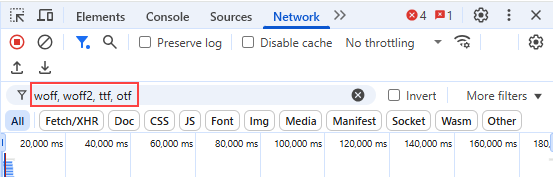
- Note any font-related errors and status codes, for example 200, 404.
Check the browser console for errors
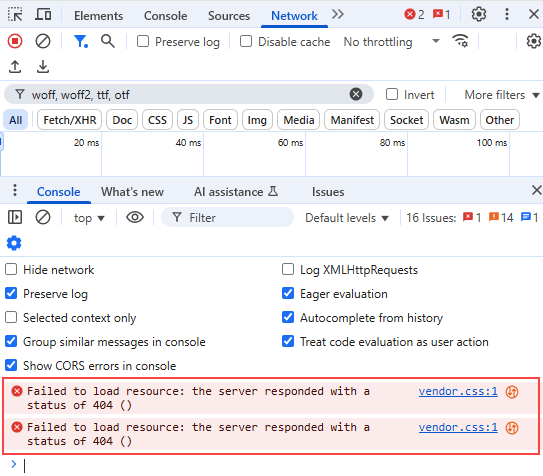
- In Developer Tools (F12), click the Console tab.
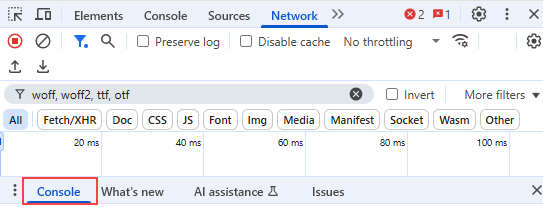
- Note any errors, especially related to fonts, CORS, or content security policies.
Visit these websites and check if fonts display normally
Indications of font issues are text displaying as odd symbols or numerous X's.
- https://fonts.google.com/specimen/Roboto+Condensed?categoryFilters=Sans+Serif:%2FSans%2F*
- https://fonts.google.com/
- https://www.wikipedia.org/
Contact support to provide them with the information you have collected.
| Revision | Date |
|---|---|
| Initial release. | 7/30/25 |


