Reusable campaign templates
Overview
Reusable campaign templates let you create a security awareness training campaign once and reuse it across multiple SMB organizations. This approach reduces setup time and ensures consistent training and messaging.
BullPhish ID also includes global templates created and maintained by BullPhish ID security awareness experts. These ready-to-use templates are regularly reviewed and updated as new training content becomes available, enabling partners to deploy current and relevant training programs with minimal effort.
This article explains how to:
- Save a training campaign as a global or organization specific template.
- Reuse an existing template when creating a new training campaign.
- Work with the Campaign Templates tab.
- Manage templates.
About reusable campaign templates
A reusable campaign template saves the settings used when creating a training campaign, allowing you to quickly reuse them for future campaigns.
There are three types of reusable campaign templates. The following sections describe each type.
Global templates
Global templates are created and maintained by the BullPhish ID content team. These templates provide ready-to-use training programs that address common security awareness needs.
For example, an "Annual Cybersecurity Training – Level 1" template may include a full year of foundational training, with one course assigned each month.
Partner templates
Partner templates are created by partner administrators and partner agents and can be used across all SMB organizations they manage.
When creating a template, in the Associated Organization drop-down list, select Save as Global Template - Share across all your organizations.
This option allows partners to standardize training programs and reuse them across multiple clients.
SMB organization templates
SMB organization templates are created for a single SMB organization.
When creating a template, select the SMB organization as the Associated Organization. Templates saved under an SMB organization are only available to that organization and cannot be used for other organizations.
This option is useful when training courses are specific to a single SMB organization, or when you want a template to be available only to that organization.
Access and permissions
Template access and actions depend on your user role and the template type.
| Role | Permissions |
|---|---|
| Partner administrator/partner agent |
|
| SMB privileged user |
|
| SMB standard user | View templates only on the Campaign Templates tab. |
Saving a training campaign as a template
NOTE An SMB Privileged User can save a training campaign template for their own organization only.
-
Navigate to Training & Awareness > Create Training Campaign.
-
The Create Training & Awareness Campaign page is displayed. In the Associated Organization list, do one of the following:
- To make this template available to all of your SMB organizations, select Save as Global Template - Share across all your organizations.
- To make this template available to a specific SMB organization only, select the name of the organization.
NOTE For an SMB Privileged User, the name of their SMB organization is pre-populated.
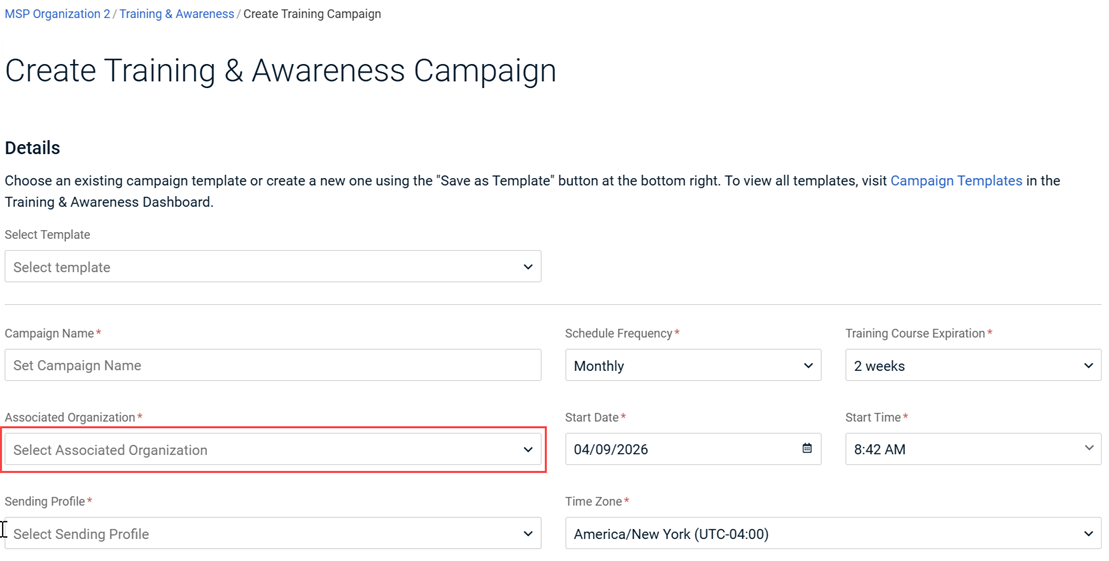
- Complete the fields in the Details, Groups,and Courses sections. See the article Creating a training campaign.
NOTE Groups do not apply when Save as Global Template - Share across all your organizations is selected in the Associated Organization field and are therefore unavailable.
- Click Save as Template.
- The Save as Template dialog box is displayed. In the Template Name field, enter a unique name.
- Click Save.
- A success message appears with a link to the Campaign Templates page.
- You remain on the Create Training & Awareness Campaign page.
- To create a campaign, click Create Campaign.
You are redirected to the Training & Awareness Dashboard and a success message is displayed.
NOTE The Create Campaign button is inactive if Save as Global Template - Share across all your organizations is selected in the Associated Organization drop-down list.To create a campaign, you must select a specific organization in the Associated Organization list.
Reusing an existing template
When you select an existing template while creating a new training campaign, BullPhish ID automatically applies the template’s settings to the campaign. You can choose from global templates or from existing partner or SMB templates.
- In the navigation menu, select Training & Awareness > Create Training Campaign.
- The Create Training & Awareness Campaign page is displayed. In the Select Template drop-down list, select the desired template. Templates are sorted by modified date with the most recently updated templates listed first. Global templates are identified by a global icon preceding the template name, as shown below.
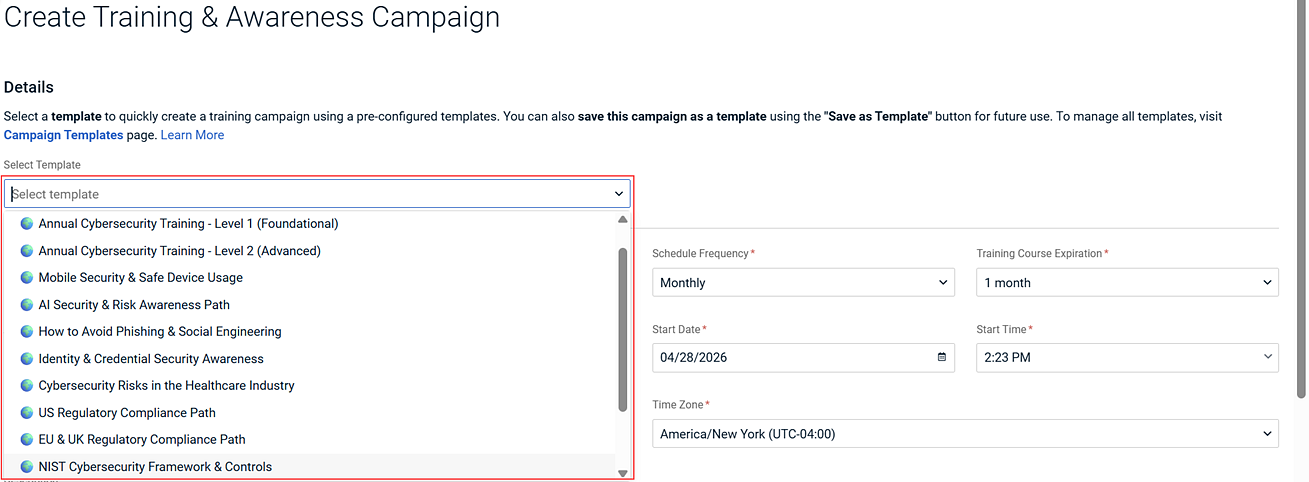
- After you select a template, the Create Training & Awareness Campaign page is populated with the template’s values.
NOTE Any values you already selected on the Create Training & Awareness Campaign page are overridden by the values from the selected template.
- Review and adjust the template settings if needed.
NOTE The Create Campaign button is inactive if Save as Global Template - Share across all your organizations is selected in the Associated Organization drop-down list.To create a campaign, you must select a specific organization in the Associated Organization list.
- Click Create Campaign.
You are redirected to the Training & Awareness Dashboard and a success message is displayed.
Managing training campaign templates
Campaign Templates tab
Use the Campaign Templates tab to view and manage training campaign templates. Navigate to Training & Awareness > View All Training Campaigns and click the Campaign Templates tab.
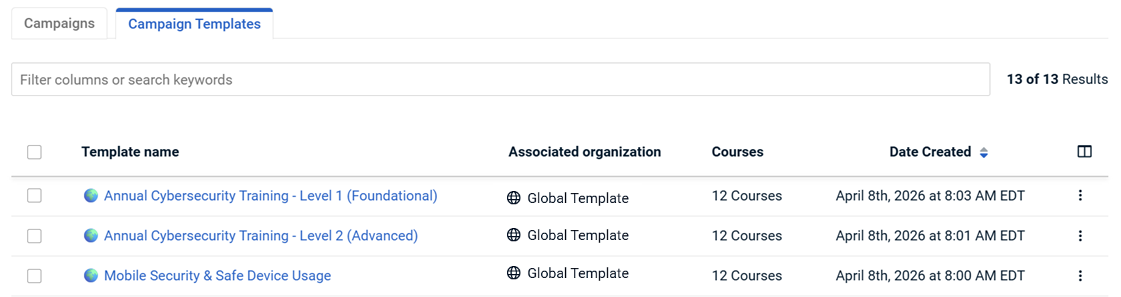
The templates table includes the following default columns:
- Template Name: The name given to the template. Global templates are identified by a global icon preceding the template name.
- Associated Organization: The organization to which the template applies. Global templates are listed as Global Template.
- Courses: Indicates the number of courses included in the template. When you hover over the course count, a tooltip displays the list of course names.
- Date Created: The date on which the template was created.
- More menu: Options to edit, rename, duplicate, and delete a template.
NOTE If a field is not defined for a template, the table displays NA in that column.
How to...
 Search and filter templates
In the Search field, you can search by Template Name and filter by Associated Organization.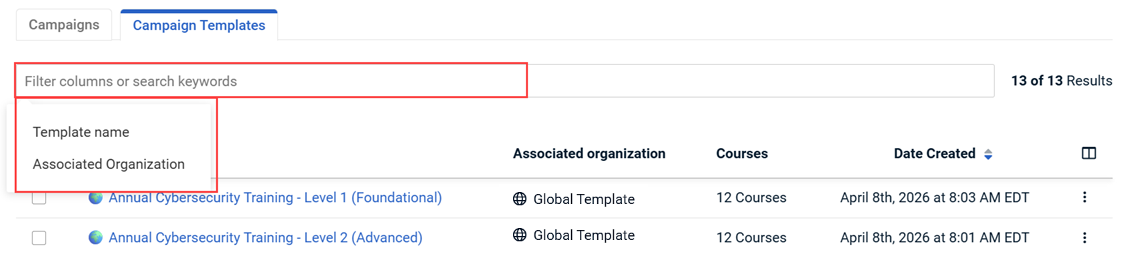
To search by template name:
- Navigate to Training & Awareness > View All Training Campaigns and click the Campaign Templates tab.
- Click in the Search field and select Template Name from the pop-up menu.
- Type the name of the template (minimum two characters) and press Enter.
To filter by an associated organization:
- Navigate to Training & Awareness > View All Training Campaigns and click the Campaign Templates tab.
- Click in the Search field and select Associated Organization from the pop-up menu.
- To list only Global Campaign Templates, turn on the toggle. Click Apply
- To list only templates for a specific partner or SMB, select the desired entity in the Associated Organization list. Click Apply.
Edit a training campaign template
Open an existing template for editing from the Campaign Templates tab. After you are done editing, you can save over the existing template or save the edited template as a new template.
NOTE A partner administrator/partner agent can edit partner and SMB templates. An SMB privileged user can only edit templates created for their SMB organization.
- Navigate to Training & Awareness > View All Training Campaigns.
- Click the Campaign Templates tab.
- (Optional) Search/filter for the desired template.
- Take one of the following actions:
- Click the template name.
OR - At the end of the template row, click the More menu, and then select Edit.
- Click the template name.
- Update the fields in the Details, Groups, and Coursessections as needed.
- Save the template using one of the options in the table below.
| Option | Steps |
|---|---|
| Overwrite the existing template. |
After you save, you are redirected to the Campaign Templates tab. |
| Save the edited template as a new template. |
If desired, you can proceed to create a campaign using the new template (an organization must be selected in Associated Organization). |
Changing the associated organization in a template
When you change Associated Organization in an existing template, the system may reset dependent fields when they are not available to the selected organization.
- Groups field always resets: A message displays indicating that some fields were reset because they are unavailable for the selected organization.
- Sending Profile field is reset (if the previous sending profile is not global).A message displays indicating that some fields were reset because they are unavailable for the selected organization.
- Courses are reset (if the previous courses are not global):
- Non-global courses are removed.
- A message appears indicating N courses were removed because they are unavailable for the selected organization.
- Sending Profile and Courses are reset (when both are not global):
- Both fields are reset.
- A message appears indicating some fields have been reset and N courses were removed because they are unavailable for the selected organization.
- If Sending Profile and Courses are global, the values are kept.
Duplicate a template
Duplicate a template when you want a copy with similar configuration but a different name.
Duplicate behavior by user role
When you duplicate a template, the Associated Organization is set automatically based on the user role and the template type.
Partner administrator/partner agent:
- If you duplicate a global or partner template, Save as Global Template - Share across all your organizations is automatically applied to Associated Organization.
- If you duplicate an SMB template, the same SMB organization as in the original template is automatically applied to Associated Organization.
SMB privileged user: If you duplicate a global, partner, or SMB template, your SMB organization is automatically applied to Associated Organization.
To duplicate a template:
- Navigate to Training & Awareness > View All Training Campaigns.
- Click the Campaign Templates tab.
- (Optional) Search/filter for the desired template.
- At the end of the template row, click the More menu, and then click Duplicate.
- The Duplicate Template dialog box is displayed. In the Template Name field , enter a unique name.
- Click Duplicate.
- If the name is already in use, an error indicates that the name is taken. Enter a different name or update the existing template.
- If the name is unique:
- The template is duplicated with the same fields as the original.
- A success message appears.
Rename a template
- Navigate to Training & Awareness > View All Training Campaigns.
- Click the Campaign Templates tab.
- At the end of the template row, click the More menu, and then select Rename.
- The Rename Template dialog box is displayed.In the Template Name field , enter a unique name.
- Click Rename.
- If the name is already in use, an error indicates that the template name is taken.
- If the name is unique:
- The template name is updated.
- A success message appears.
Delete a template
You can delete one or more templates from the Campaign Templates tab.
Deleting a single template
- Navigate to Training & Awareness > View All Training Campaigns.
- Click the Campaign Templates tab.
- At the end of the template row, click the More menu, and then select Delete.
- The Delete Template confirmation dialog box is displayed. Click Delete to confirm or Cancel to keep the template.
Bulk delete templates
- On the Campaign Templates tab, select one or more templates using the row checkboxes.
- The Delete button appears above the table.Click Delete.
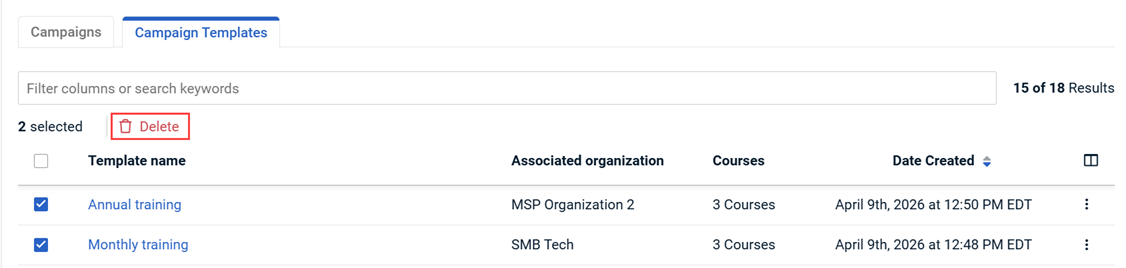
- The Delete Templates confirmation dialog box is displayed. Click Delete to confirm or Cancel to keep the templates.
| Revision | Date |
|---|---|
| Initial release. | 4/16/26 |
| Campaign Templates tab: Template Name, Assoc. Organization - Added global template info. | 5/4/26 |


