Enabling direct campaign email delivery through INKY
 Security and navigation
BullPhish ID
NAVIGATION Settings > Integrations
PERMISSIONS Partner Administrator in BullPhish ID with at least one active subscription.
INKY
NAVIGATION Admin Center > Integrations
PERMISSIONS Super Admin role.
Overview
The INKY integration connects BullPhish ID (BPID) with INKY's email protection platform, enabling direct campaign email delivery to protected targets without routing through SMTP. This integration enables Partner Administrators to synchronize organizations from INKY, monitor protection status per organization, and ensure campaign emails reach every target through the most appropriate delivery path.
Key capabilities
- Direct INKY delivery: Campaign emails sent to INKY-protected targets bypass SMTP and are delivered through the INKY integration, improving deliverability and traceability.
- Mixed-mode delivery: When an organization contains both protected and unprotected targets, BPID automatically routes protected targets through INKY and unprotected targets through SMTP without interrupting the campaign.
- Organization status tracking: The integration continuously synchronizes organization protection state and displays one of four statuses — Active, Partially Active, Inactive, or Error — so you can identify and resolve coverage gaps.
- Unprotected target export: For Partially Active or Error organizations, you can download a CSV listing every unprotected target, making it straightforward to remediate missing INKY coverage.
- Credential lifecycle management: You can update, replace, or revoke the INKY application programming interface (API) key at any time. If credentials fail, BPID falls back to SMTP and alerts you with a banner and an error status.
- Mutual exclusivity with Graphus: INKY and Graphus cannot be active simultaneously. BPID enforces this constraint and guides you through disconnecting one integration before enabling the other.
How it works
After you enter and verify a valid INKY API key, BPID begins synchronizing organizations from your INKY account. For each synchronized organization, BPID compares the active targets in that organization against the domains and inclusion groups configured in INKY. Targets whose email domains match an INKY-configured domain and belong to the billing-eligible inclusion group are classified as protected. All others are classified as unprotected. BPID then assigns a status to each organization based on that comparison.
When a campaign runs, BPID consults the current protection classification for each target and routes the email through INKY or SMTP accordingly. Synchronization runs on a schedule and can also be triggered manually, keeping statuses current as your target list and INKY configuration change.
Campaign delivery information is available on the Training & Awareness Dashboard, Phishing Dashboard, and the details page for each campaign. For more information, see the section Campaign delivery information.
INKY integration page
The INKY Integration page contains the API key setup controls and the synchronized organization table.
API key setup
The API key setup section contains the controls used to authenticate BPID with your INKY account and manage the connection.
| Field | Description |
|---|---|
| API Key | The INKY API key used to authenticate and connect BPID to your INKY account. Required. Type the key provided by INKY. After successful verification, this field can be updated to rotate or replace the key. |
| Region | The INKY server region associated with your account. Required. Select US or Europe. After successful verification, this field becomes read-only and cannot be changed without re-verifying with a new key. |
| Verify | Submits the API key and region to INKY for authentication. A successful verification connects the integration and starts the initial organization synchronization. |
| Sync Now | Manually triggers an organization synchronization. Displays the date and time of the most recent completed sync. Available only when the integration status is Connected. |
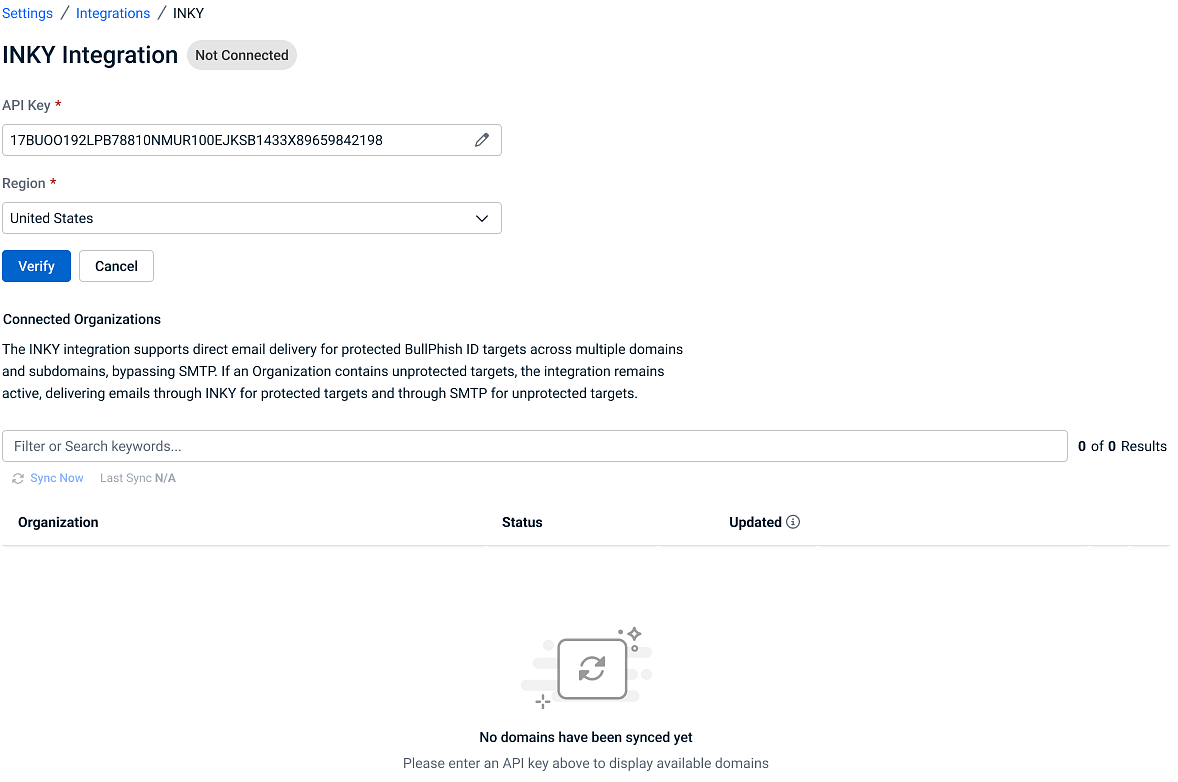
Connected Organizations table
The Connected Organizations table lists every organization synchronized from your INKY account and shows the current protection status and delivery routing for each.
| Field | Description |
|---|---|
| Associated Organization | The name of the organization as returned by INKY. Used as the primary identifier in the organization table and as a filter and sort option. |
| Status |
The current protection status of the organization. Possible values:
|
| Updated | The date when the organization's status last changed. If a sync completes without changing the status, this date remains unchanged. Hover over the column header for a full description of this behavior. |
| Download | Downloads a Comma-separated Values (CSV) file named "Unprotected users" listing every active target in the organization whose email domain is not covered by the INKY configuration. Available only for organizations in Partially Active or Error status. |
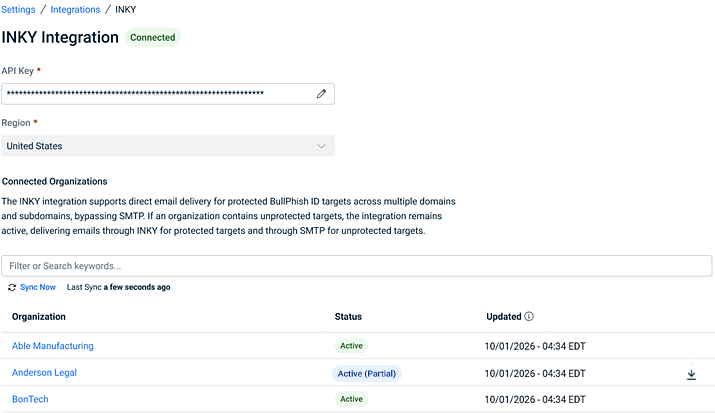
Campaign delivery information
Campaign dashboards
With the INKY integration, there may be times when campaign emails were delivered via standard SMTP when delivery through INKY was expected. The Email Fallback column on the Training & Awareness Dashboard and the Phishing Dashboard provides clear visibility into the number of targets whose campaign emails were delivered via standard SMTP when INKY delivery could not be utilized.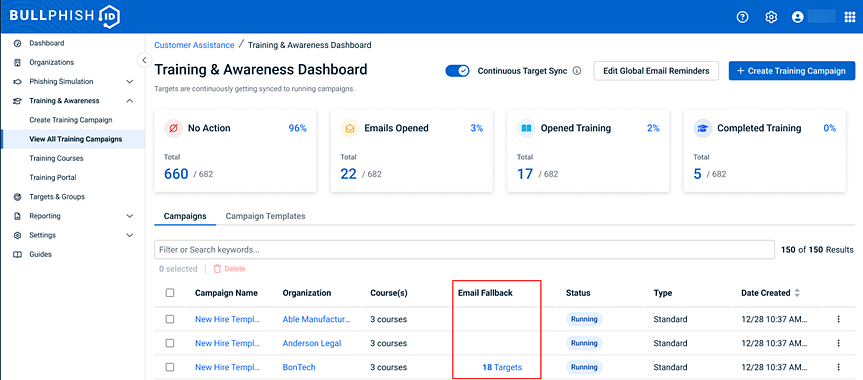
The following conditions can cause campaign emails to be sent through SMTP, resulting in the Email Fallback field displaying the number of affected targets (for example, "18 targets"):
- Integration Status in Error: Partner integration is down.
- Uncovered Domains: Target email domain is outside INKY protected domains.
- Upstream/Microsoft Failures: Delivery fails on Microsoft side during active integration.
Campaign details page
On each campaign's details page, the Sent At column shows a delivery-channel icon (INKY / SMTP / Graphus) for each email row and each resend log row.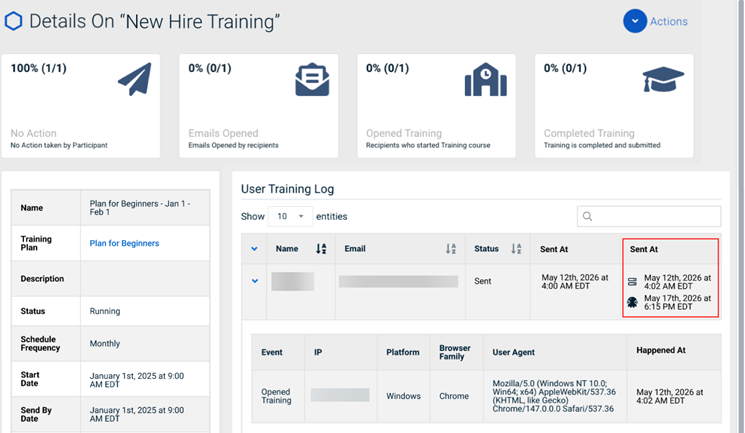
For more information about the Email Fallback column and the Sent At column, see:
How to...
IMPORTANT To configure the integration, you must complete the "Generate an API Key in INKY" and "Connect the INKY Integration" procedures. All other procedures are optional and depend on your organization's requirements.
Generate an API key in INKY
To generate an API key:
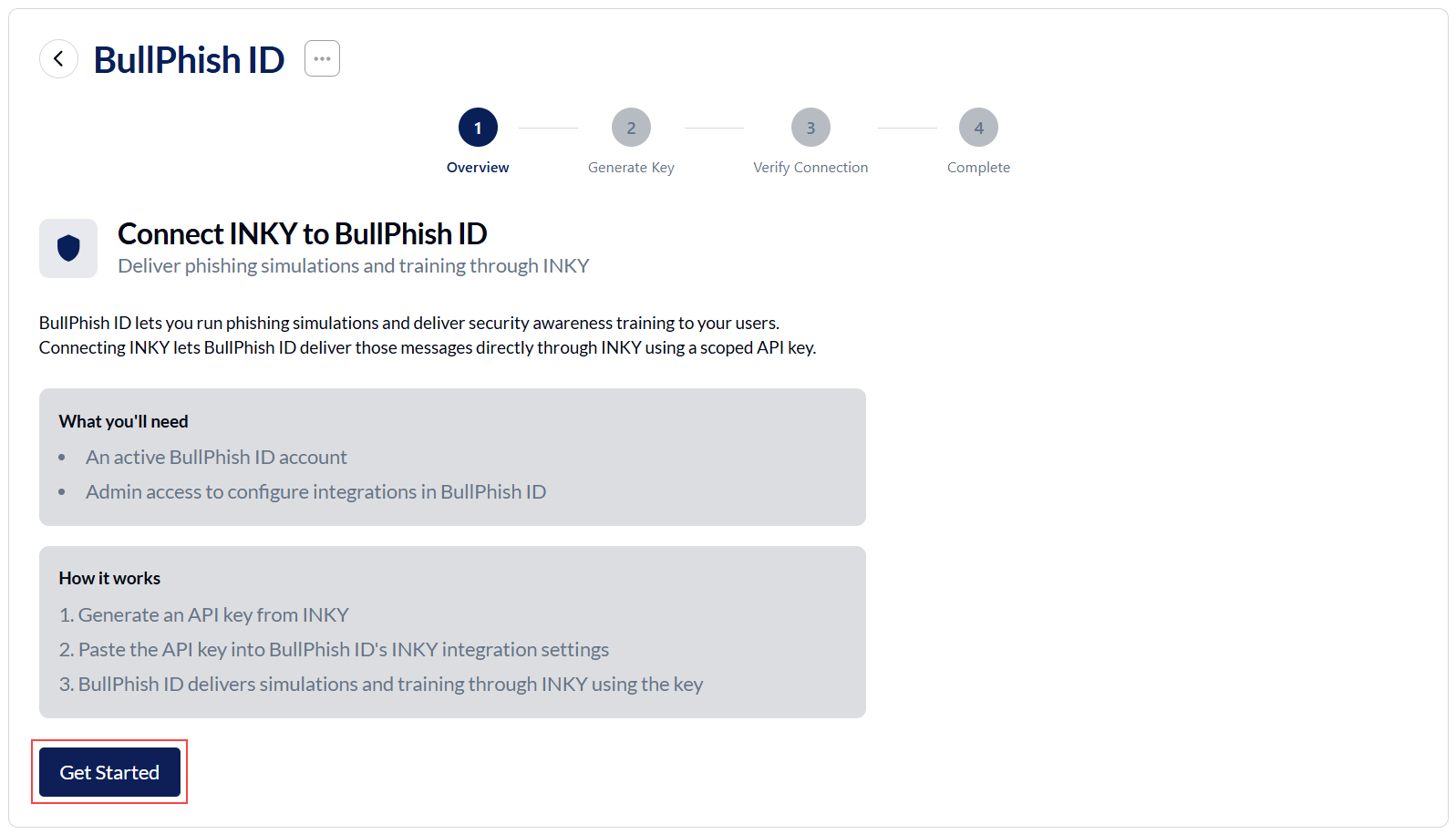
- In INKY, navigate to Admin Center > Integrations.
- Click the BullPhish ID card to open the setup wizard.
- Click Get Started.
- Click Generate API Key.
- Copy the key when it is generated. The full API key cannot be viewed again after it is generated.
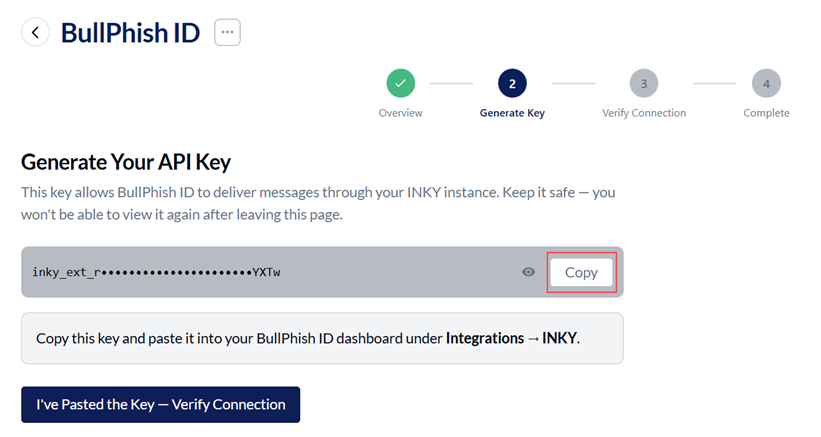
- Go to the next procedure "Connect the INKY integration."
Connect the INKY integration
BEFORE YOU BEGIN Confirm that you are a Partner Administrator with at least one active subscription. If the Graphus integration is currently connected, disconnect it before proceeding — INKY and Graphus cannot be active at the same time.
To connect the INKY integration, complete the following steps:
- In BullPhish ID, select Settings > Integrations.
- Locate the INKY row in the integrations list.
- Click Connect. The INKY integration setup page opens.
- In the API Key field, enter your INKY API key.
- In the Region drop-down, select either US or Europe to match your INKY account region.
- Click Verify.
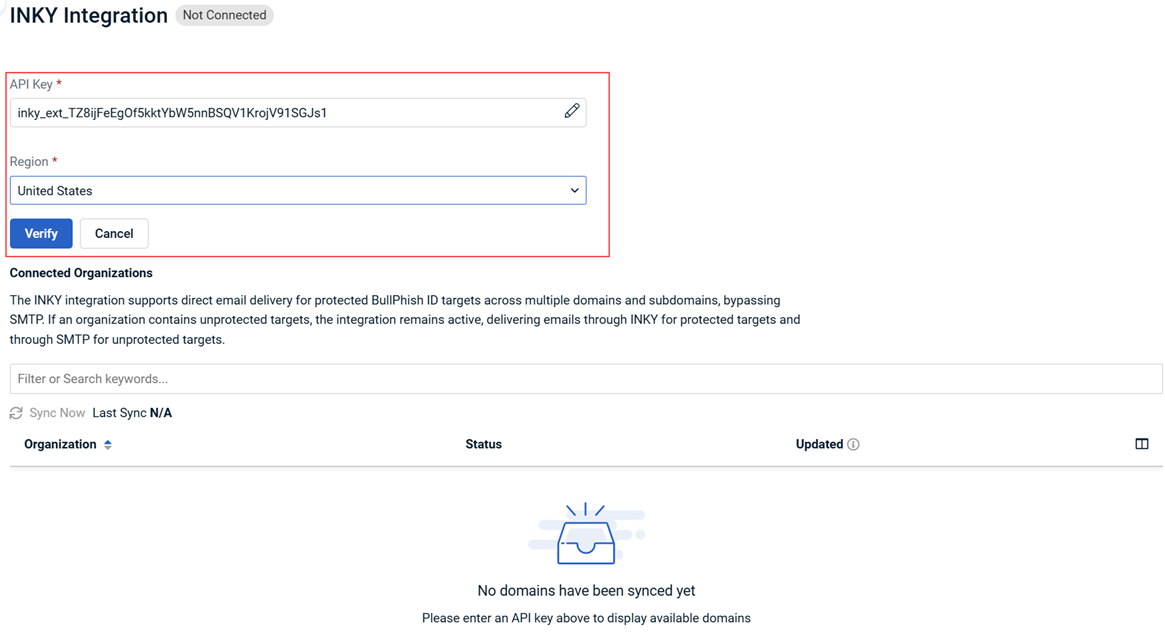
BPID verifies the API key and displays the message "Success. API key has been verified." The Region field becomes read-only. The integration status on the Integrations page updates to Syncing or Connected as BPID begins the initial organization synchronization. Once the first sync completes, the INKY Integration page displays the organization table.
NOTE If you leave the API Key or Region field empty and click Verify, BPID displays a required-field validation message and does not submit the form. If the key is invalid or expired, BPID displays "Failure. API key is not valid" and the integration remains Not Connected.
- Return to INKY and click I've Pasted the Key — Verify Connection.
INKY verifies the connection after the API key is entered in BullPhish ID. This typically takes a few seconds after you paste the key.
When the connection is successful, INKY indicates that the integration is active.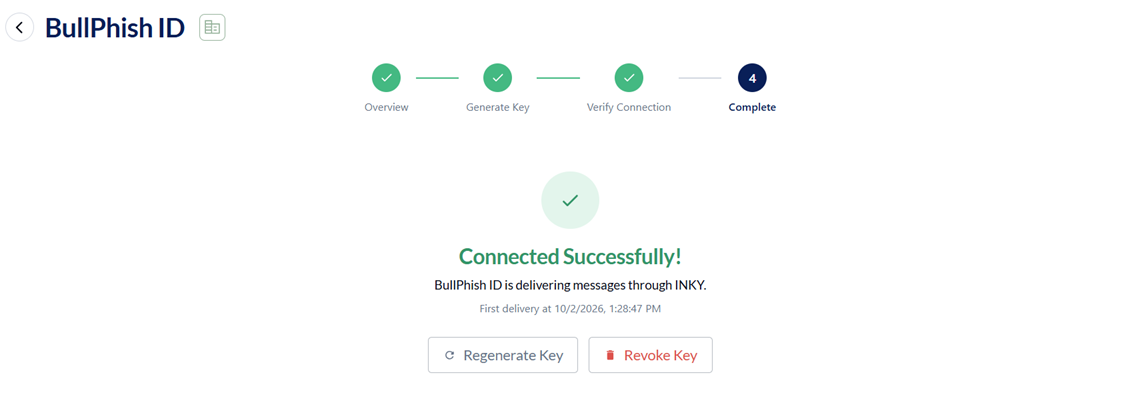
If required, the API key can be regenerated or revoked in INKY. Regenerating the key requires you to update the integration configuration in BullPhish ID. Revoking the key disconnects the integration.
If an API key is generated but the connection is not completed, INKY may detect that a key exists without an active connection. In this case, return to the integration in INKY and regenerate or revoke the key to restart the setup process.
Update or replace the API key
BEFORE YOU BEGIN Obtain the new INKY API key you want to use.
To update or replace the API key, complete the following steps:
- In BullPhish ID, navigate to the Integrations page.
- In the Service column, click INKY.
- In the API Key field, click the edit icon.
- Enter the new INKY API key.
- Click Verify.
If the new key is valid, BPID displays "Success. API key has been verified." BPID re-syncs organizations using the new key and recalculates organization statuses. BPID replaces the previous key. If the new key is invalid, BPID displays "Failure. API key is not valid," and the previous working key remains active. The organization table and existing connection are unchanged.
Trigger a manual sync
To trigger a manual organization sync, complete the following steps:
- Navigate to the INKY Integration page.
- Review the date shown next to Sync Now to confirm when the last sync ran.
- Click Sync Now.
BPID triggers an organization sync. The organization table displays a Syncing or In-Process state while the sync runs. When the sync completes, only the Updated column values for organizations whose status changed are refreshed. Organizations whose status did not change retain their previous Updated date.
Download unprotected targets
BEFORE YOU BEGIN Confirm the organization you want to export is in Partially Active or Error status. The download action is not available for organizations in Active status.
To download a list of unprotected targets for an organization, complete the following steps:
- Navigate to the INKY Integration page.
- In the Connected Organizations table, find the row for the organization in Active (Partial) or Error status.
- Hover over the last column and click the download icon.
BPID downloads a CSV file named "Unprotected users" that lists every active target in that organization whose email domain is not covered by the INKY configuration. These targets currently receive campaign emails through SMTP. Use the file to identify and add the missing domains or targets to INKY's inclusion group.
Filter and sort the Connected Organizations table
To filter or sort the Connected Organizations table, complete the following steps:
- Navigate to the INKY Integration page.
- Click the Filter field.
- To filter by status, in the pop-up menu, select Status. Then select a value from the Status filter — for example, select Active (Partial) to display only organizations with mixed INKY and SMTP routing. Click Apply.
- To filter by organization name, in the pop-up menu, select Organization. Enter/select a name in the Organization drop-down list. Click Apply.
- To filter by the date an organization's status last changed, in the pop-up menu, select Updated. Select the desired date(s). Click Apply.
- To sort by organization name, click the Associated Organization column header to toggle ascending or descending order.
The organization table refreshes to show only the rows that match your filter criteria. Clear any filter to restore the full list. If the organization list spans multiple pages, use the pagination controls at the bottom of the table to navigate.
Disconnect the INKY integration
To disconnect the INKY integration, complete the following steps:
- Navigate to the Integrations page.
- Find the INKY row and in the last column, click the More menu.
- Select Disconnect.
- Confirm the disconnect action in the confirmation dialog.
BPID displays "Success. INKY Integration has been disconnected." The integration status changes to Not Connected. Future campaign emails route through SMTP. BullPhish ID preserves historical campaign service information, including which service delivered each email in past campaigns and this information remains visible on the Campaign Details page.
FAQ
Can INKY and Graphus be active at the same time?
No. INKY and Graphus are mutually exclusive.
BPID enforces this constraint and guides you through disconnecting one integration before enabling the other.
What happens if my API key expires or is revoked?
BPID falls back to SMTP delivery and alerts you with a banner and an error status.
To restore INKY delivery, update or replace the API key using the procedure in this article.
| Revision | Date |
|---|---|
|
Initial release. |
10/19/26 |


