BullPhish ID April 16, 2026 v2.143 release notes
New features
Reusable campaign templates
Creating training campaigns just became faster and easier. Reusable campaign templates allow you to quickly create security awareness training campaigns without recreating them from scratch for each client. This feature reduces setup time and ensures consistency across training programs.
There are three types of reusable campaign templates available:
- Global templates: Created and maintained by the BullPhish ID content team. These templates provide ready-to-use training programs that address common security awareness needs.
- Partner templates: Created by partners and available for use across all SMB organizations they manage.
- SMB organization templates: Created for a single SMB organization.
With reusable campaign templates, you can:
- Start with ready-made training plans. Select from pre-built templates and launch campaigns in just a few steps.
- Create once, reuse anytime. Save your campaign as a template and reuse it across multiple organizations.
- Use expert-maintained global templates. Access templates created and automatically updated by our content experts.
- Reduce campaign setup effort. Standardize campaigns and launch training with minimal manual work.
- View and manage templates from the new Campaign Templates tab on the Training & Awareness Dashboard.
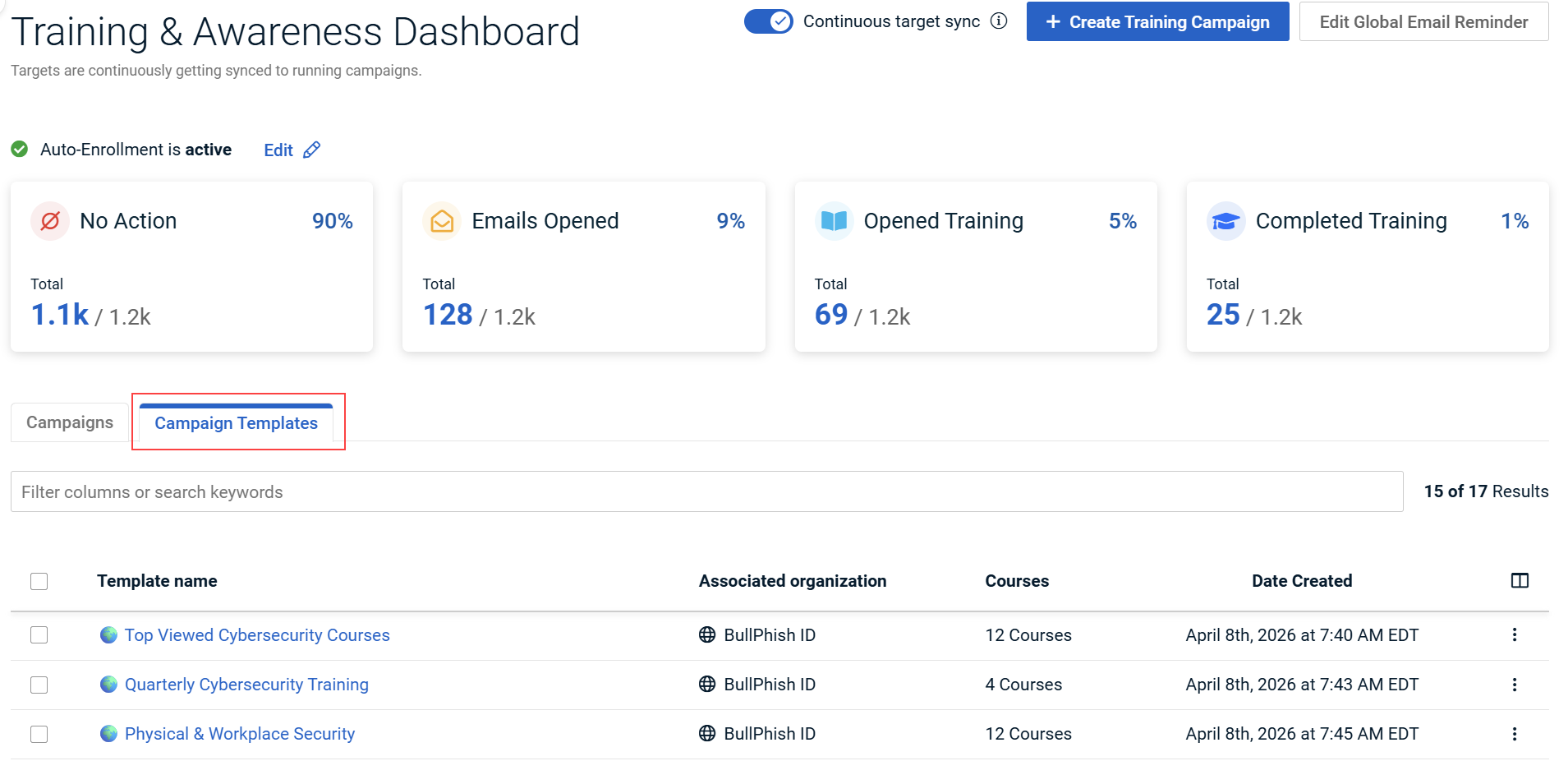
For more information, see Reusable campaign templates.
Enhancements
Redesigned Create Training & Awareness Campaign page
The Create Training & Awareness Campaign page has been redesigned with improved usability and a consistent experience.
- A Select Template drop-down list is now available at the top of the page. When you select an existing template while creating a new training campaign, the page is automatically populated with the template’s values.

- Campaign schedule details (Schedule Frequency, Training Course Expiration, Start Date, Start Time, Time Zone) are now grouped together on the right side of the form.
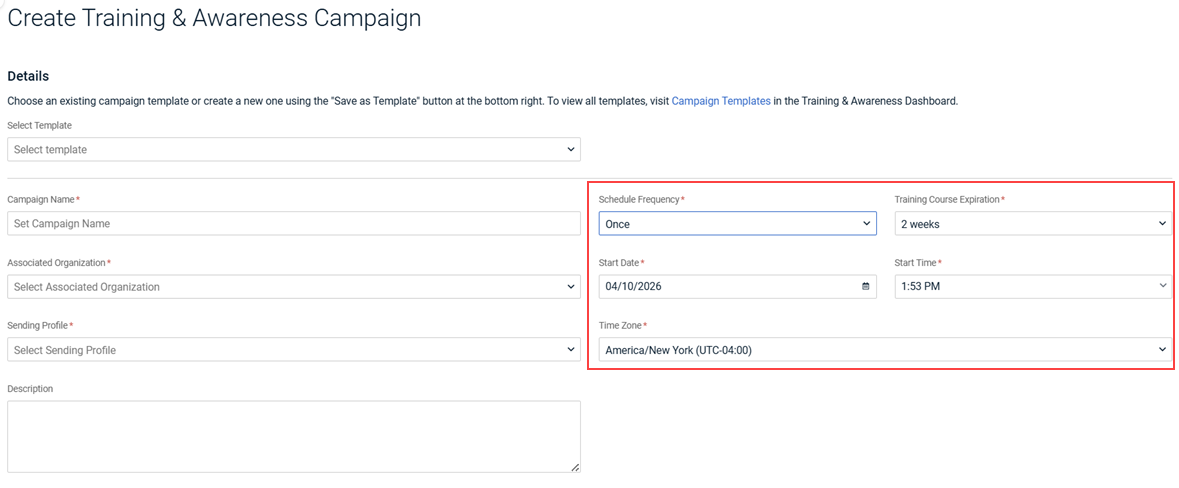
- You now select groups in the Groups drop-down list. Only groups with active targets for the selected Associated Organization are displayed.

- In the Courses section, all available courses for the selected Associated Organization are listed in the left pane. Drag and drop the desired courses to the Drag & Drop area to include in the campaign.
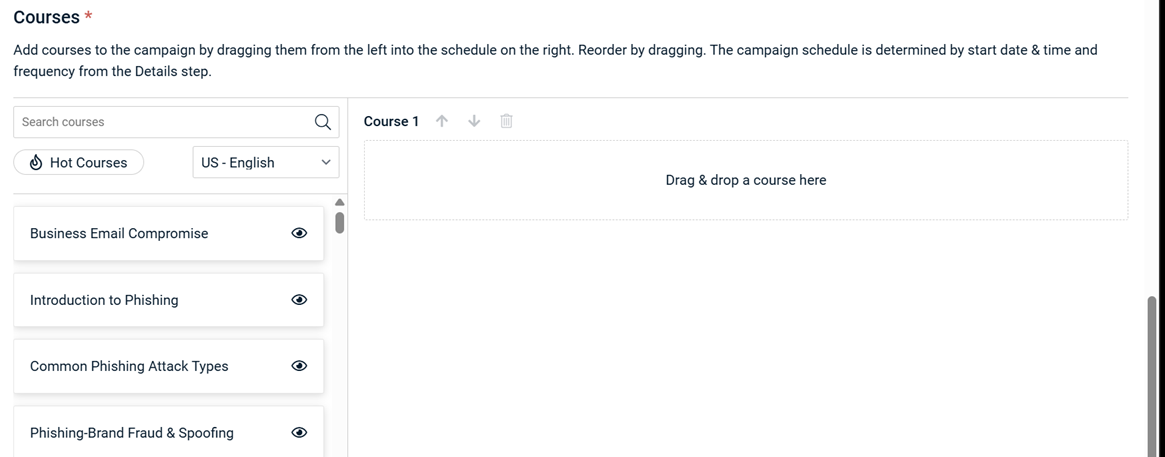
For more information, see Creating a training campaign.


